

Connect a model: DeepSeek
Without a connected model Pine can’t answer anything, so this is the most important first step. This page walks through the full flow with DeepSeek: first get an API key on the DeepSeek platform, then enter it in Pine. Other providers work the same way; only the website where you get the API key changes to that provider’s.
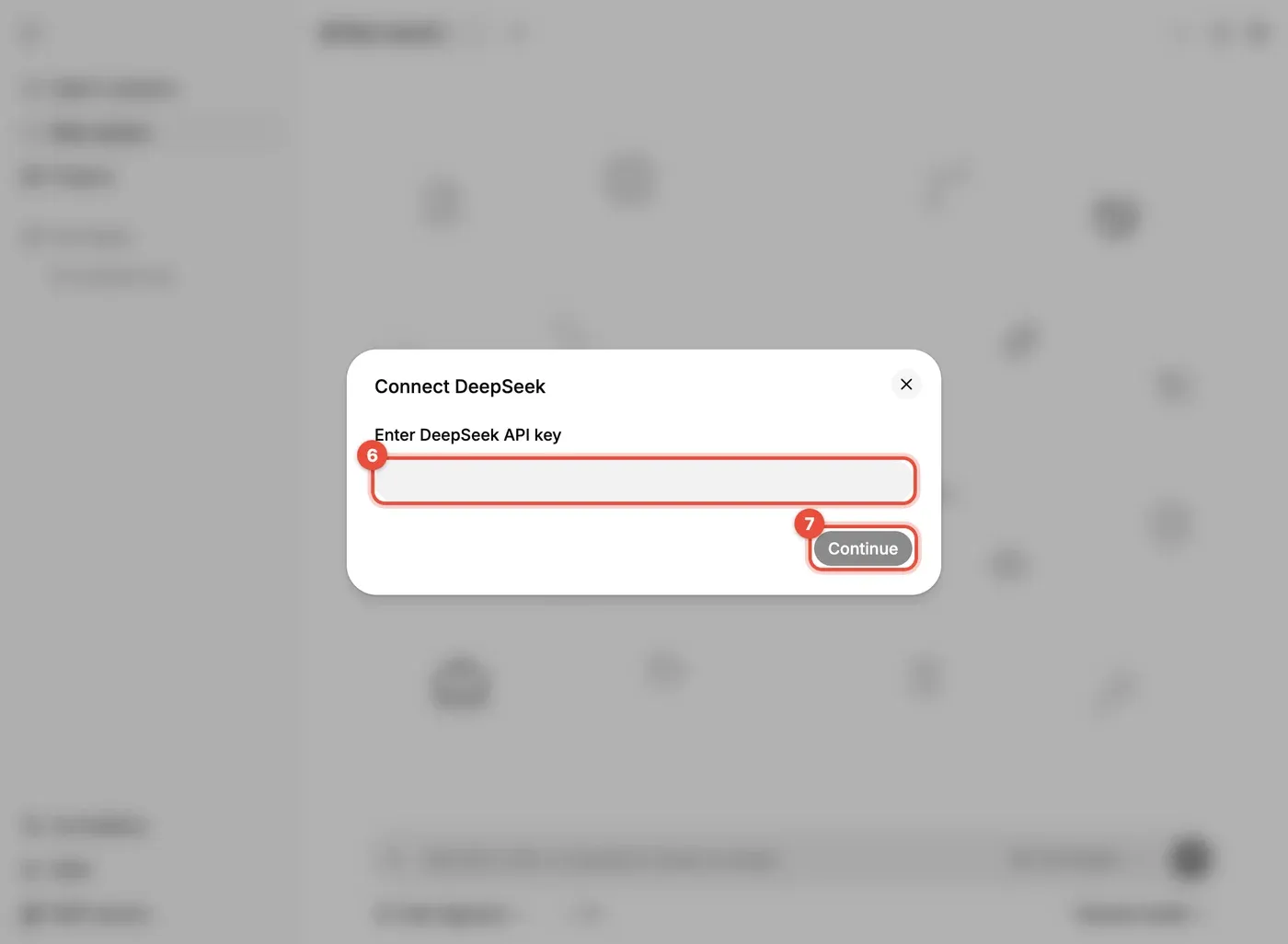
In the screenshots below, the red boxes and numbers mark where to click or type; the numbers are the order of the steps. Accounts, balances, and existing keys in the screenshots are redacted.
Get an API key on the DeepSeek platform
DeepSeek’s API platform (platform.deepseek.com) and its web chat (chat.deepseek.com) are two separate things. Web chat is free and needs no top-up; the API is billed by usage, so you top up first and then create a key.
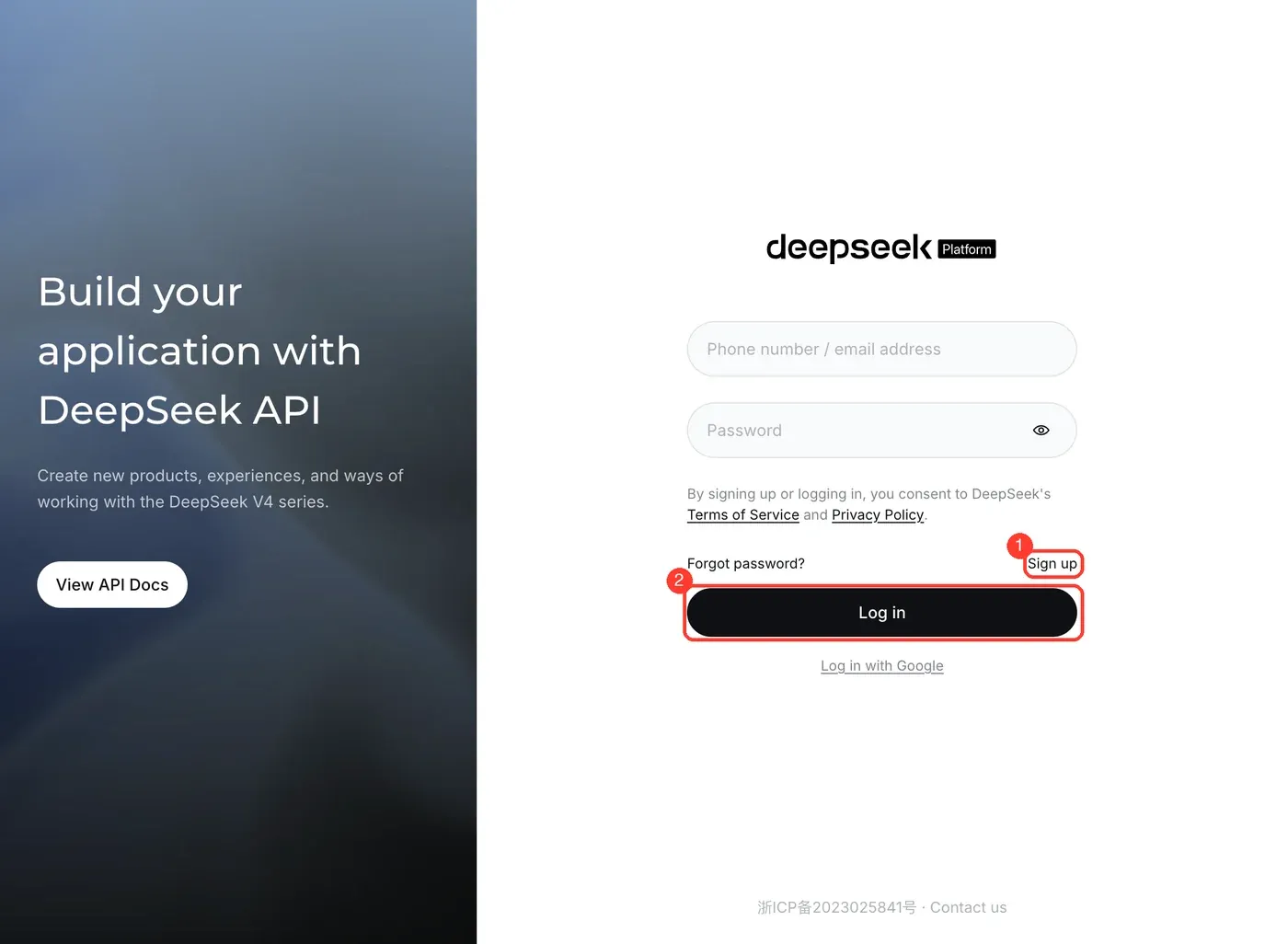
Step 1: Sign in or sign up
- Open platform.deepseek.com.
- If you already have an account, enter your phone number or email and password to sign in (②).
- If not, click Sign up at the bottom right (①); you can also use “Log in with Google” below.
Step 2: Top up
- After signing in you land in the console. Click Top up on the left (①).
- Choose an amount (②). The page offers tiers starting at $2, lets you switch between USD and CNY, or lets you pick Custom.
- Choose a payment method (③).
- Click Next step (④) and follow the page to pay.
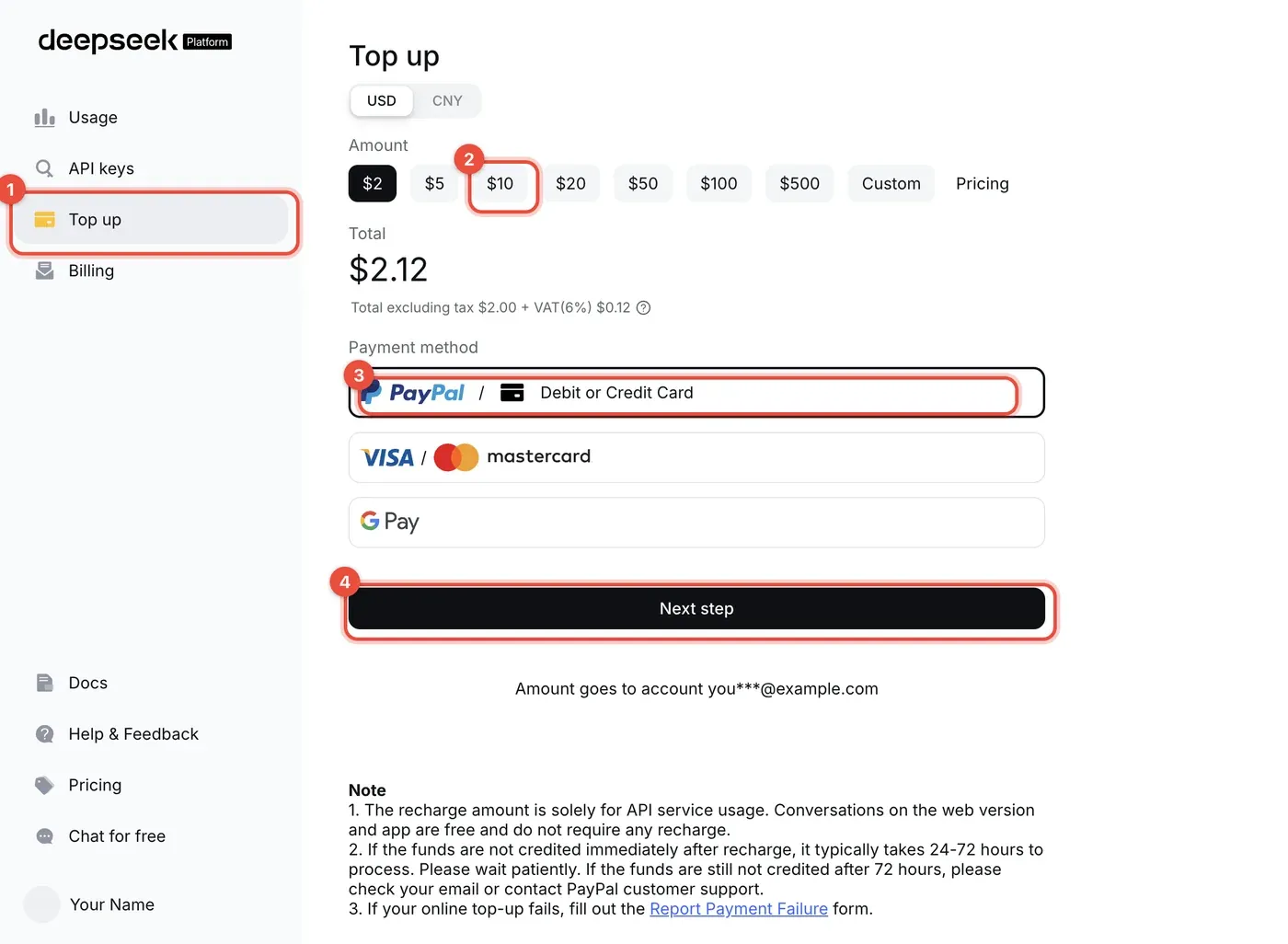
- The page may show taxes (for example VAT); what’s shown for your account is what applies.
- Credit usually arrives instantly. The page says it may take up to 24–72 hours; if it still hasn’t arrived after that, follow the page to contact support.
- A small top-up is enough to start. To see each model’s price, click Pricing on the left.
Step 3: Create an API key
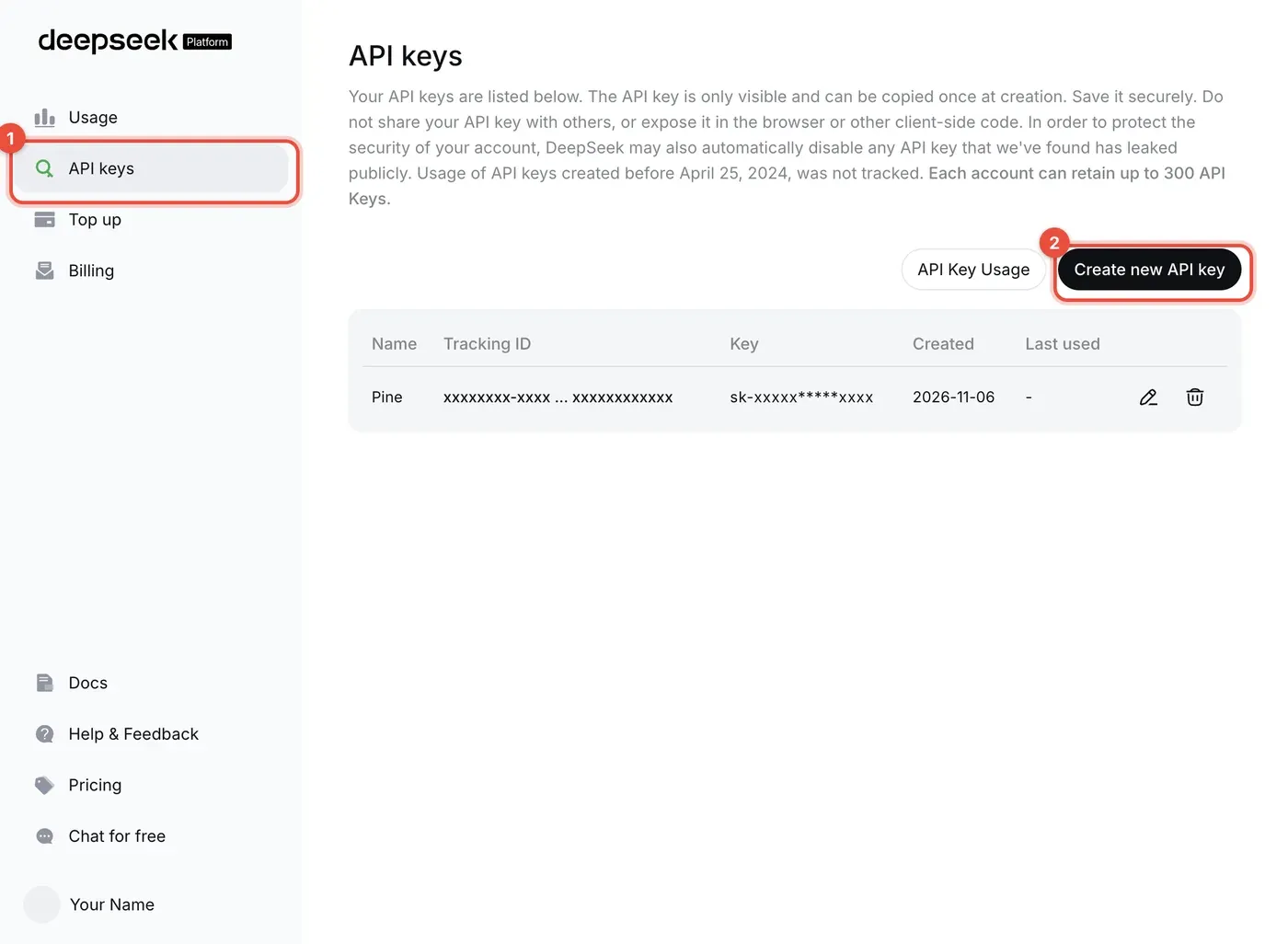
- Click API keys on the left (①), then Create new API key at the top right (②).
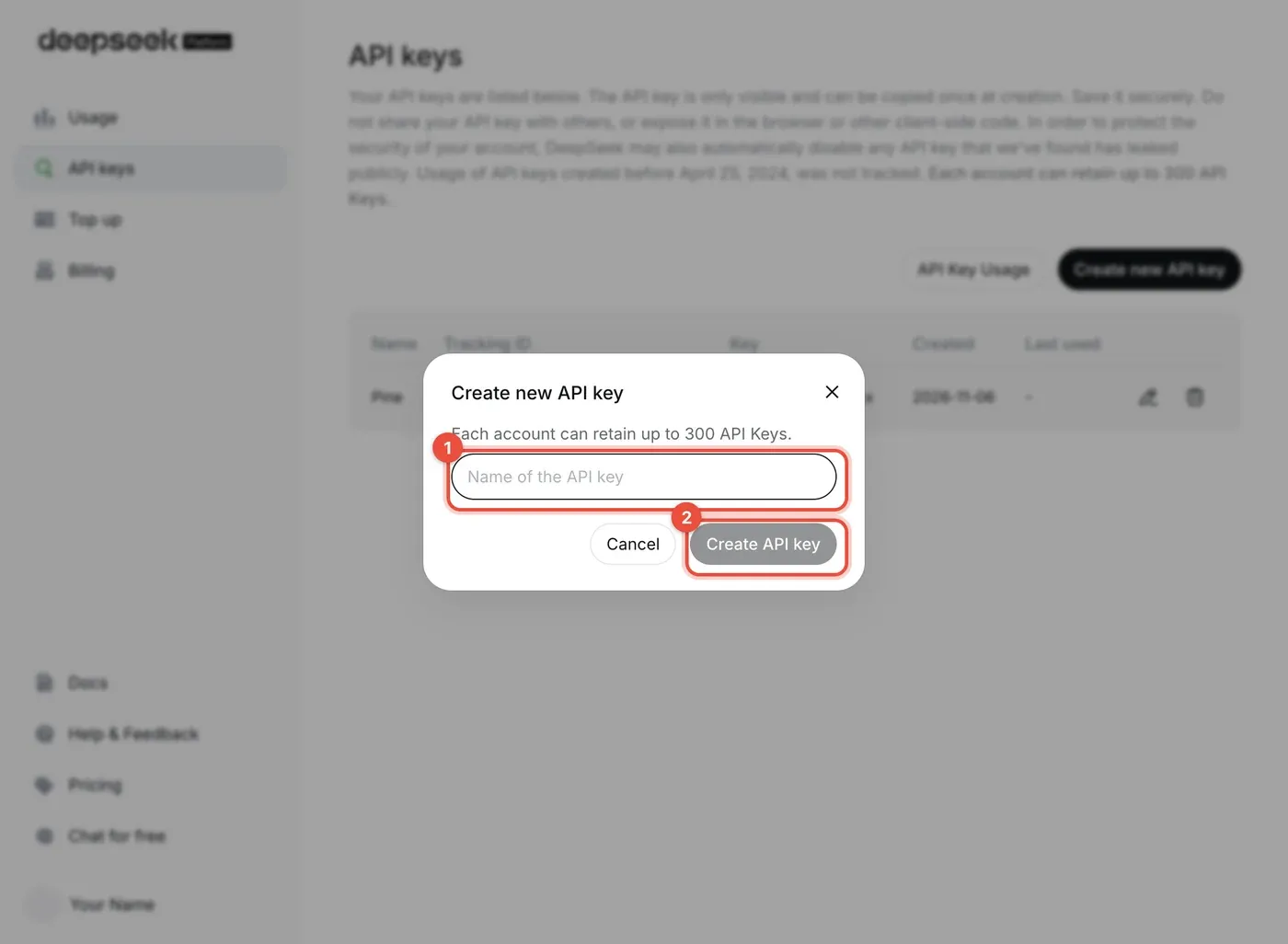
In the dialog, give the key an easy-to-recognize name such as Pine (①), then click Create API key (②).
After it’s created, the page shows the full key (starting with sk-) only this once. Copy it and keep it safe. Once you close the dialog you can’t see the full key again; if you lose it, you have to delete it and create a new one.
An API key is equivalent to your account balance: anyone who has it can spend your money. Don’t send it to anyone, don’t paste it into chats or screenshots, and don’t commit it to a code repository. If you suspect a leak, go back to the API keys page, delete the key (trash icon at the end of the row), and create a new one.
Connect DeepSeek in Pine
Step 1: Open the model control
- Open a new session and click Choose model at the bottom right of the input box (①).
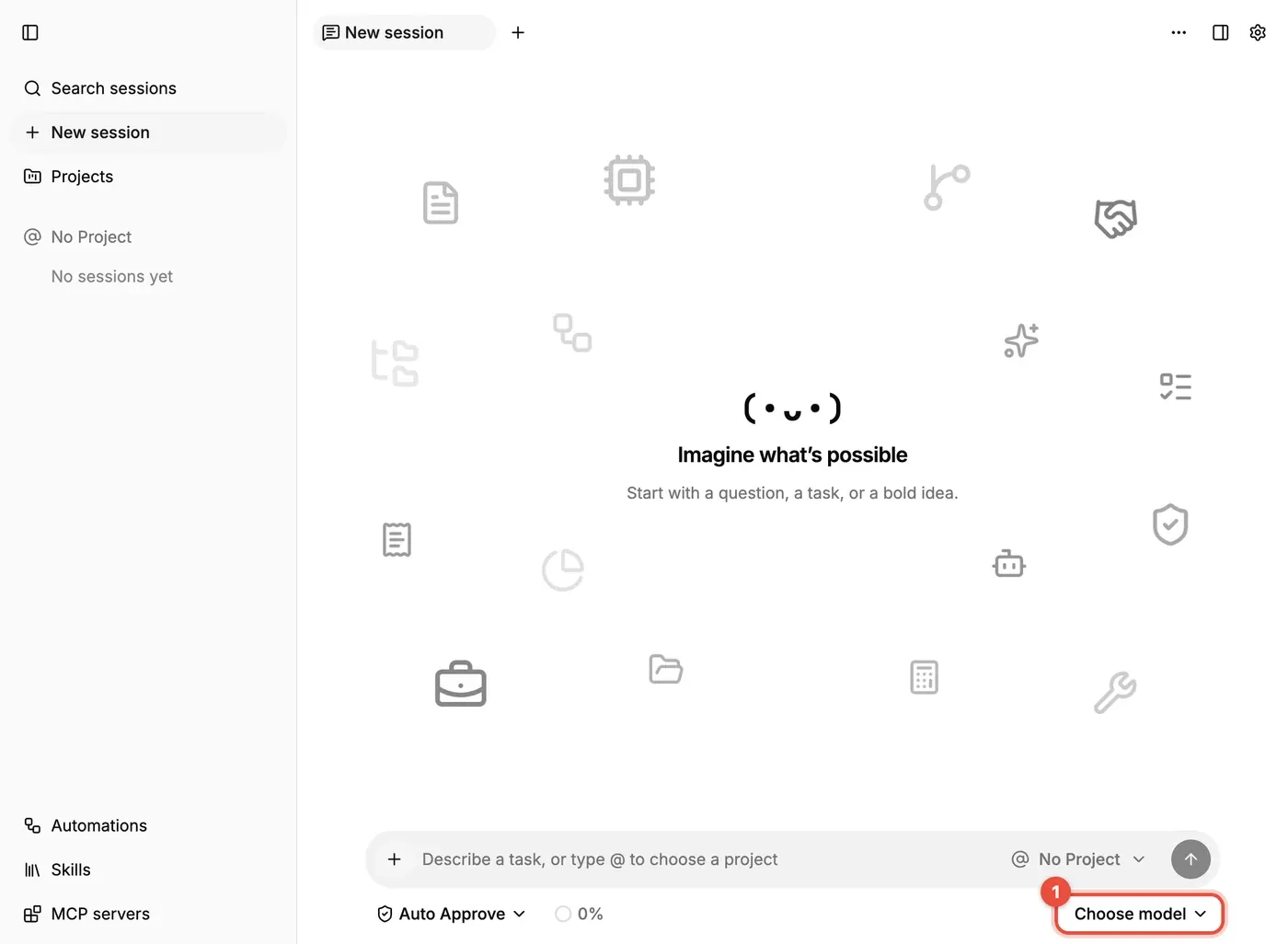
Step 2: Browse all models
- Before any provider is connected, the drop-down contains only Browse all models… (②). Click it.
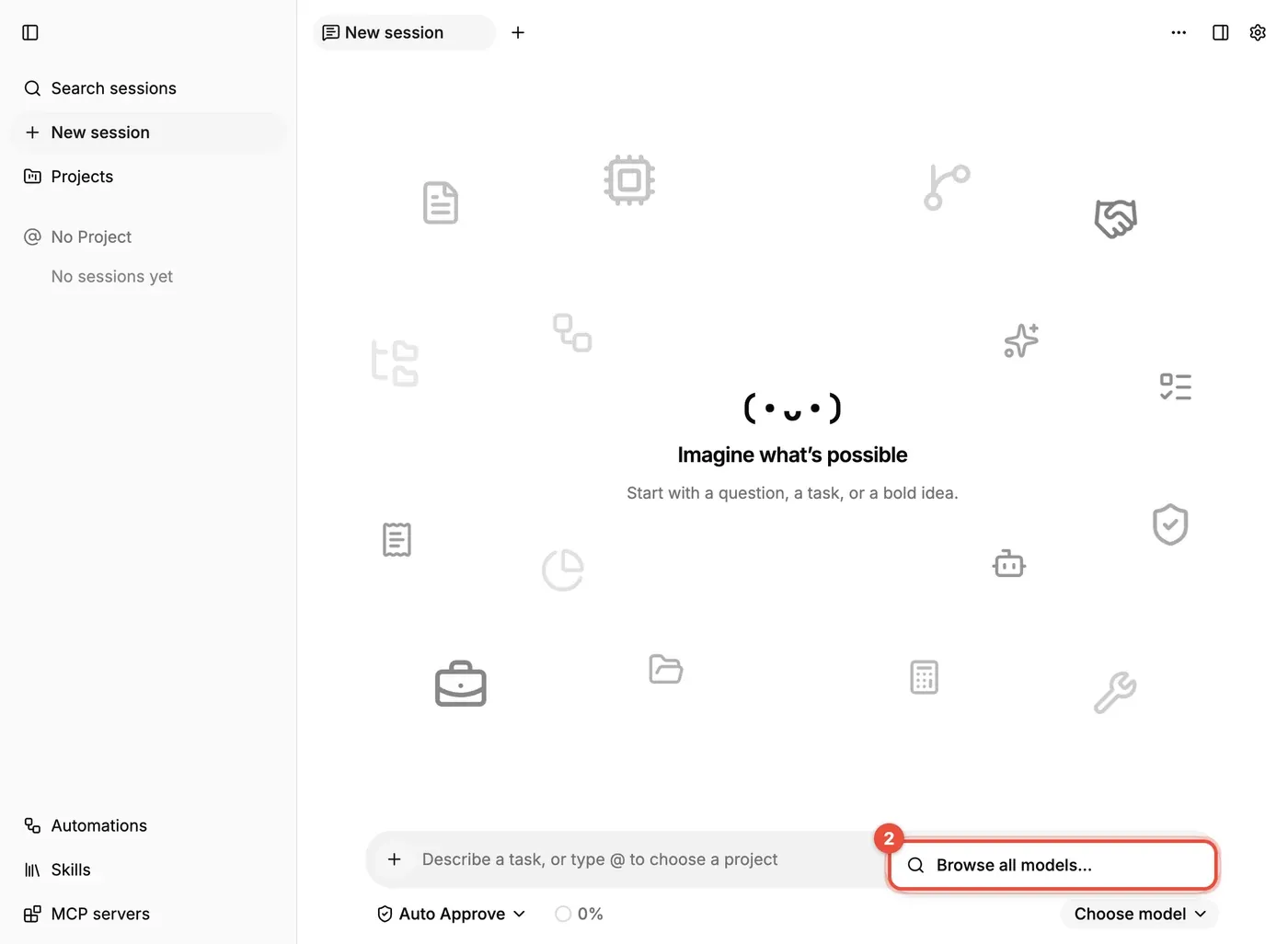
Step 3: Manage providers
- In the window that appears, click Manage providers and models (③).
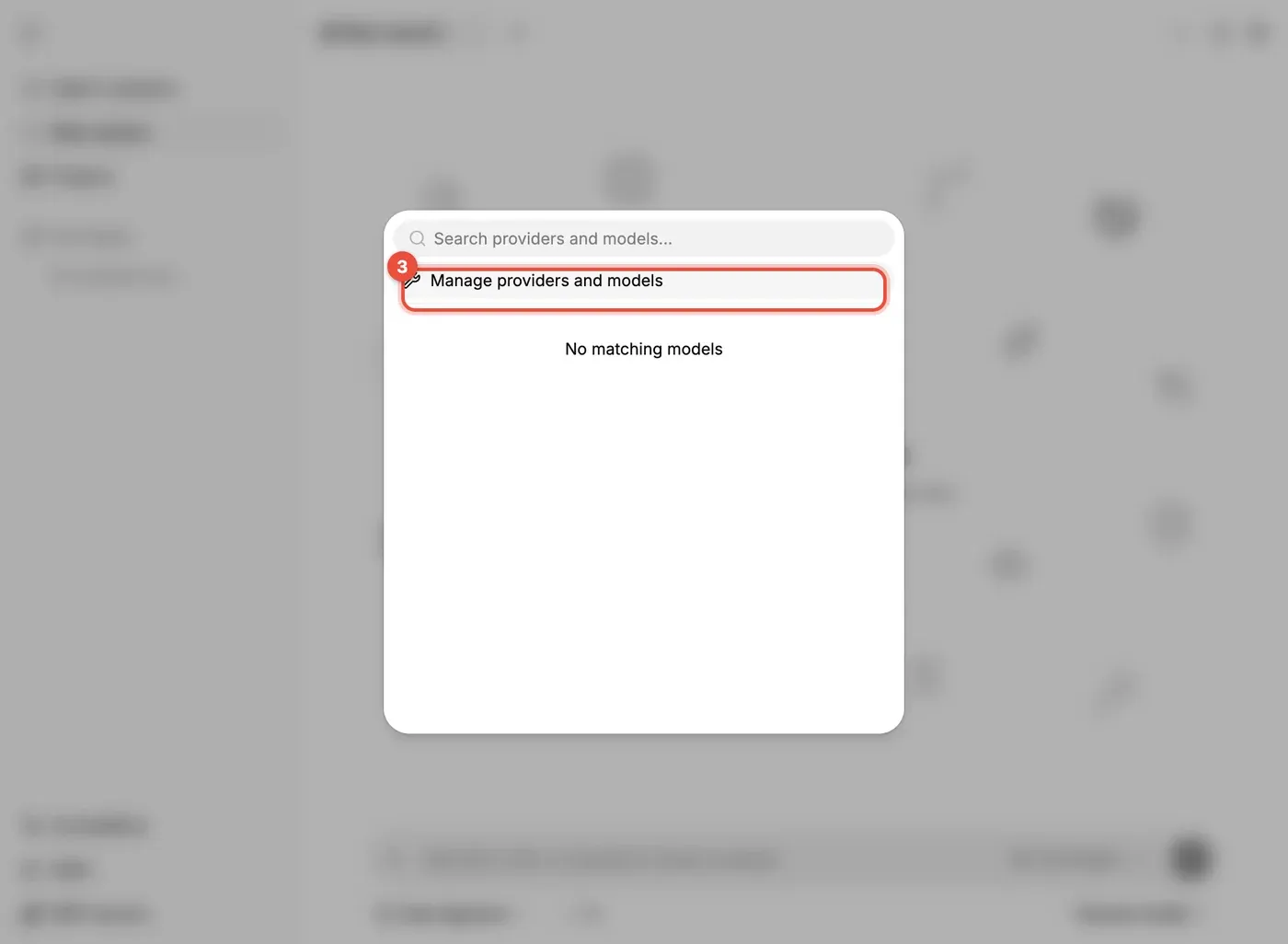
Steps 4 and 5: Find DeepSeek
- Type
deepseekin the search box at the top (④). - Click DeepSeek when it appears (⑤).
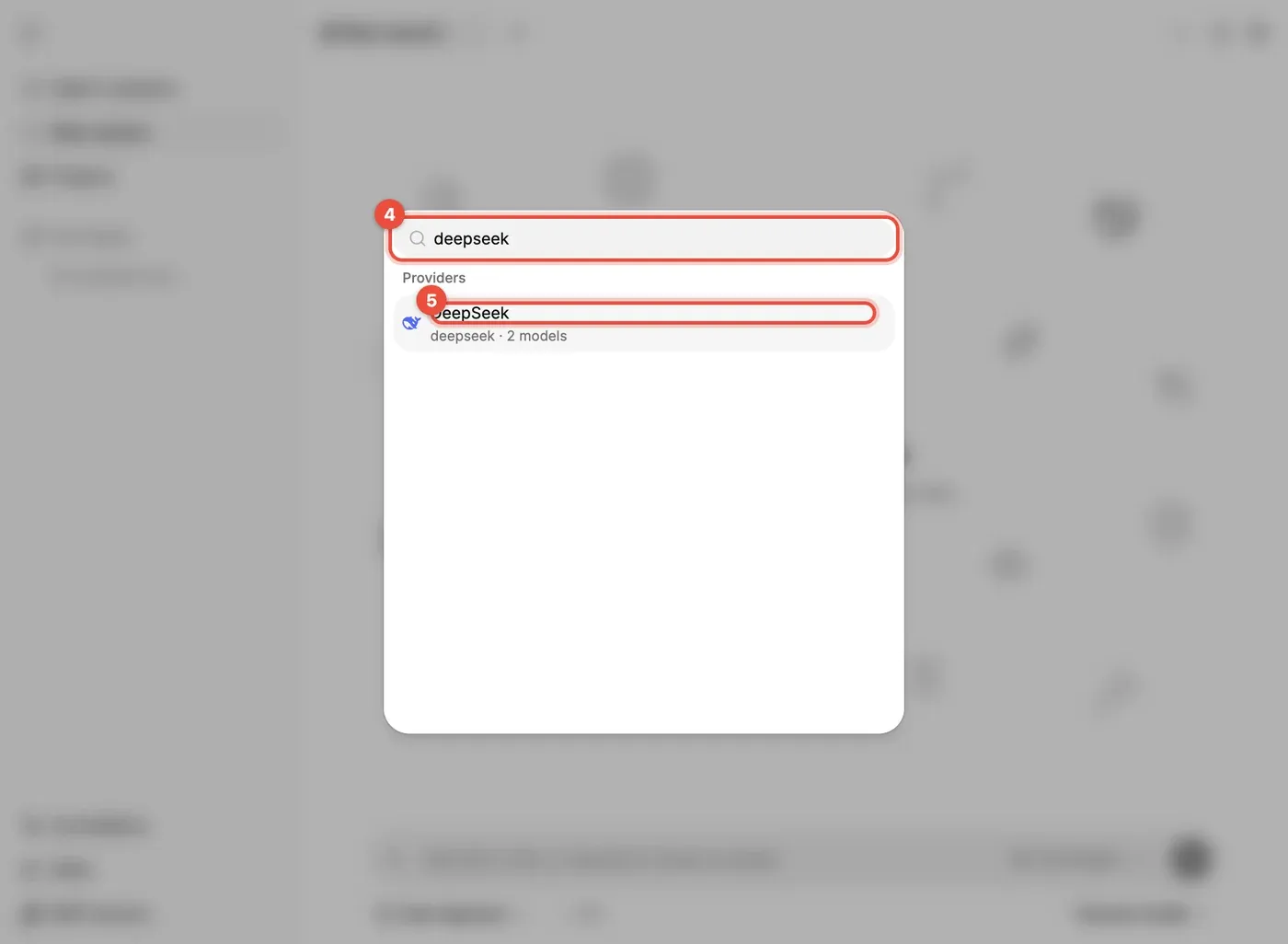
Steps 6 and 7: Paste the key
- In the Connect DeepSeek dialog, paste the API key you just copied into the input (⑥).
- Click Continue (⑦).
Once connected, DeepSeek’s models appear in the model list. Go back to the session, click Choose model, pick a model, and send any message. If you get an answer, the connection works.
Confirm the connection works
- It answers normally: you’re done.
- It reports an authentication failure or invalid key: go back to “Get an API key on the DeepSeek platform” and check that the key was copied in full with no extra spaces; create a new one if needed.
- It reports insufficient balance: top up on the Top up page of the DeepSeek platform, or check your balance and usage on the Usage page.
- It never responds, or shows a network error: make sure your network can reach
platform.deepseek.com; if needed, set up a proxy and restart Pine.
Tips
- DeepSeek currently offers mainly two kinds of models:
deepseek-flash: fast and cheap.deepseek-v4-pro: more capable.
- For the latest model names and prices, see the DeepSeek API docs. Pine’s model catalog updates with each release, and the names you see in the list are the ones Pine knows.
- Get the flow working with a cheaper model first, and switch to a stronger one when you need it.
- Context usage at the bottom of the input box shows this session’s cost and lets you set a Session cost limit; when the limit is reached, the session stops automatically.
- If you use a self-hosted gateway or a third-party aggregator that isn’t in the built-in list, choose Add custom model in the same window and fill in the endpoint address (for example DeepSeek’s OpenAI-compatible address
https://api.deepseek.com), the key, and the model name. - To use the same key on several computers, create one key per computer (for example
Pine MacandPine Windows) so you can disable them individually.