

Image and video generation, and automatic approval (OpenRouter)
Pine’s features below all call models through OpenRouter:
- Image generation
- Video generation
- The Decisions screening model used by automatic approval
Without an OpenRouter key, these items show OpenRouter is not configured yet in settings. If you only chat and work with files, you can skip this page.
OpenRouter is a unified model-access platform: one account and one key give you models from many vendors, billed by usage with no subscription.
Sign up for OpenRouter
Step 1: Open the sign-up window
- Go to openrouter.ai and click Sign Up at the top right (①).
- Choose how to sign up: a GitHub or Google account, or just an email.
- With email: enter your email (②), set a password (③), tick the agreement to the terms (④), and click Continue (⑤). Your name is optional.
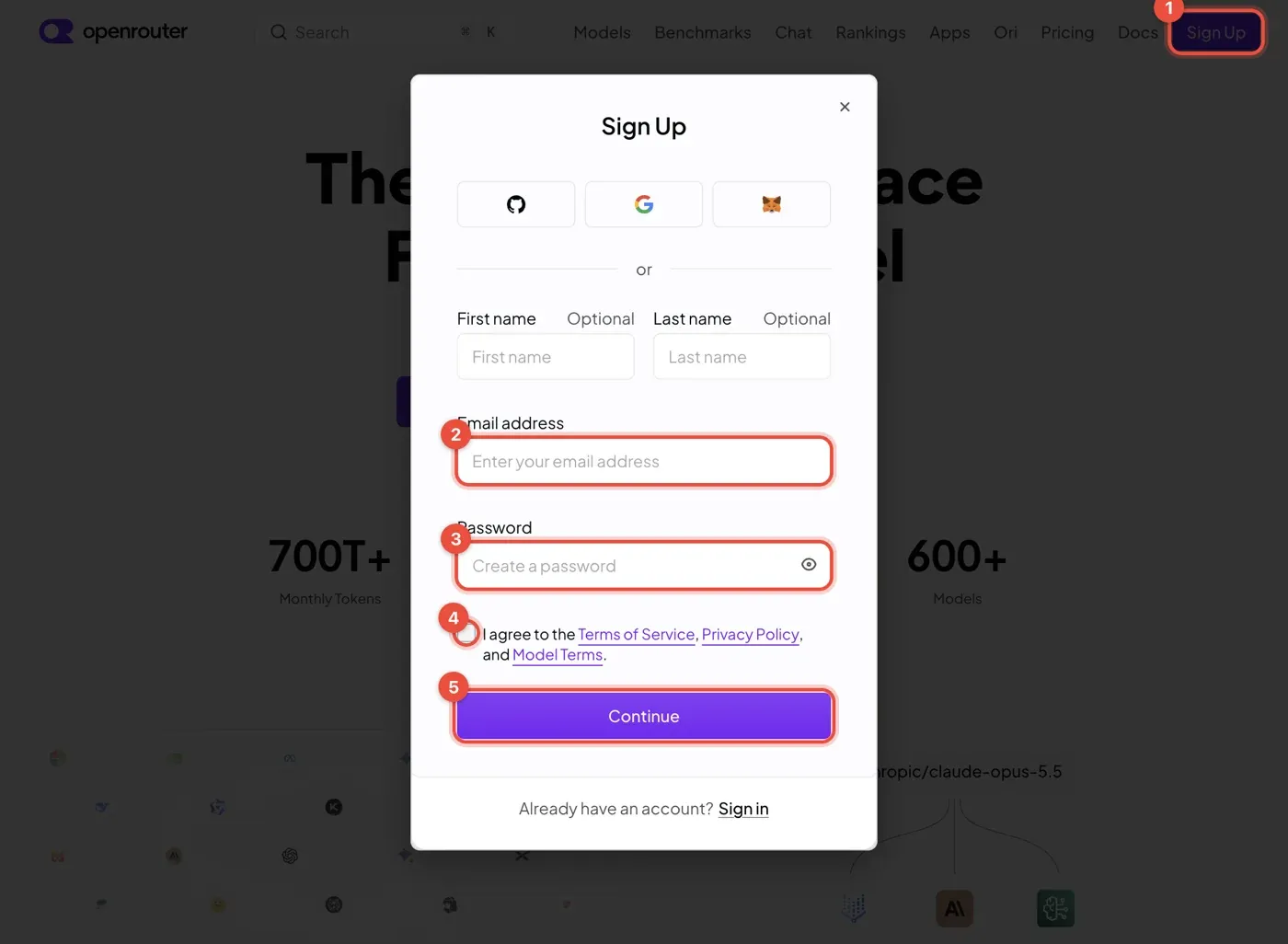
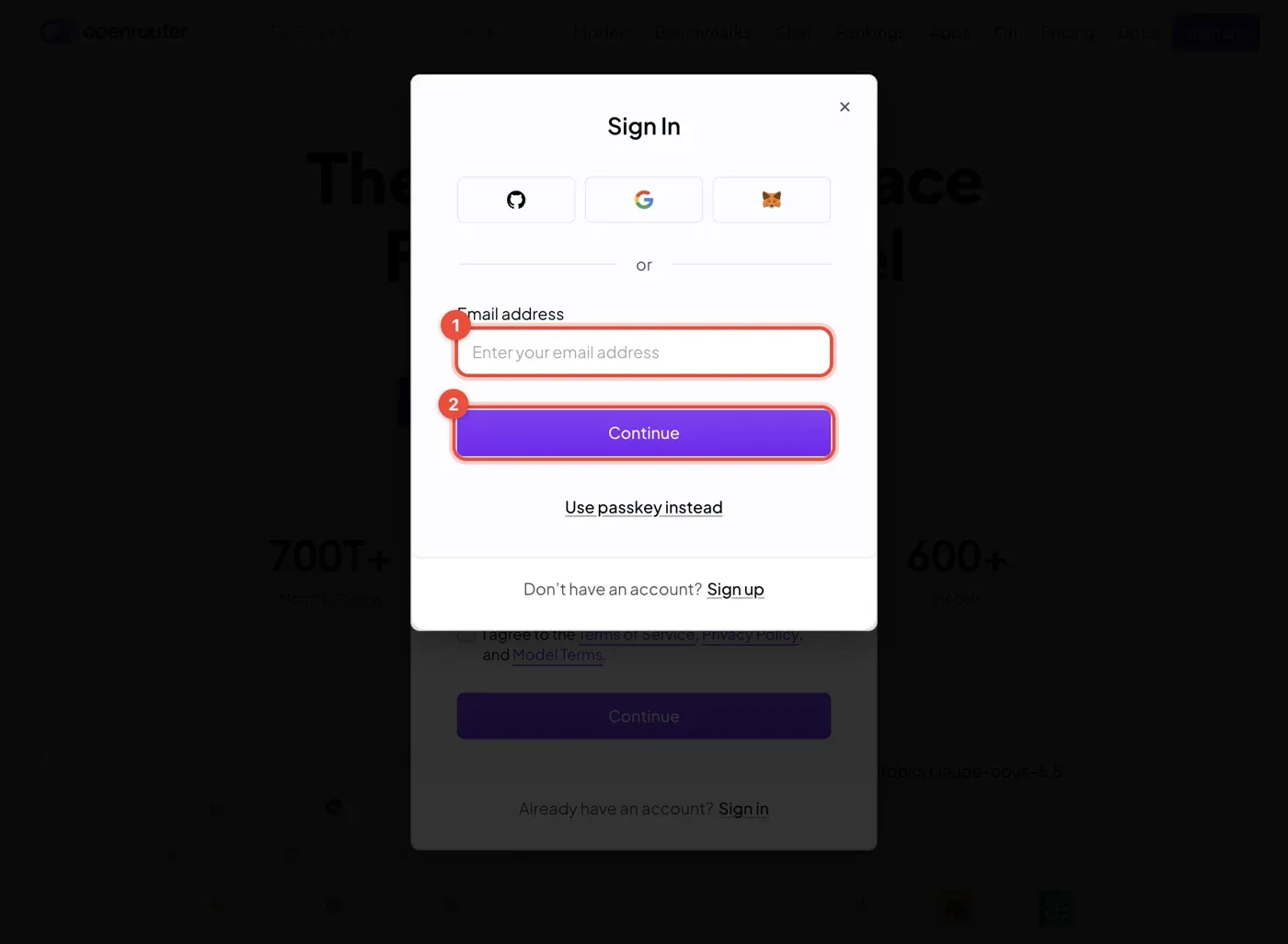
If you already have an account, click Sign in at the bottom of the window to sign in directly:
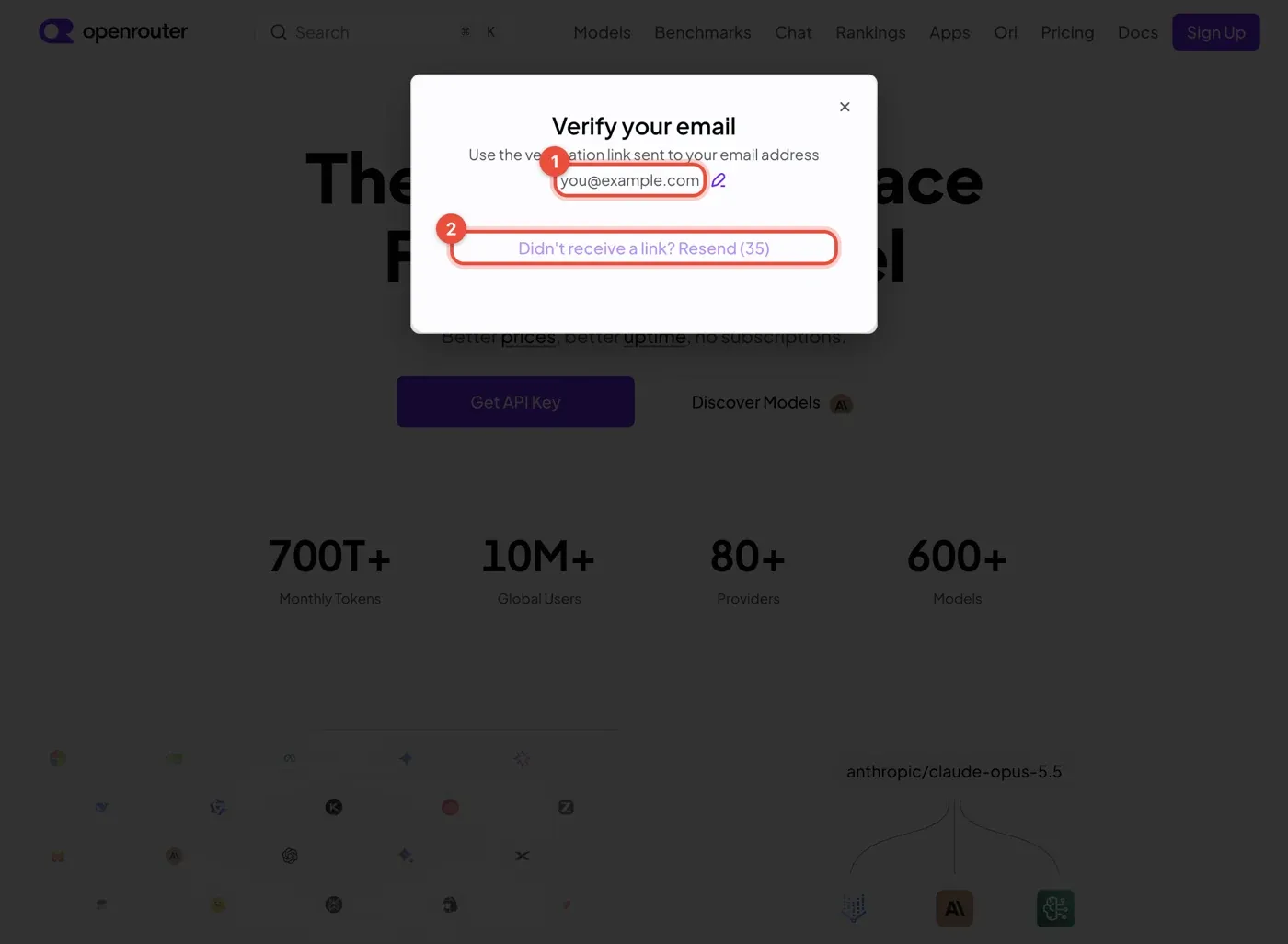
Step 2: Verify your email
- After signing up with email, OpenRouter sends you an email.
- Open it and click the sign-up link to verify.
- The link is valid for only 10 minutes; if it expires, go back to the sign-up page and start again.
Step 3: Finish the welcome onboarding
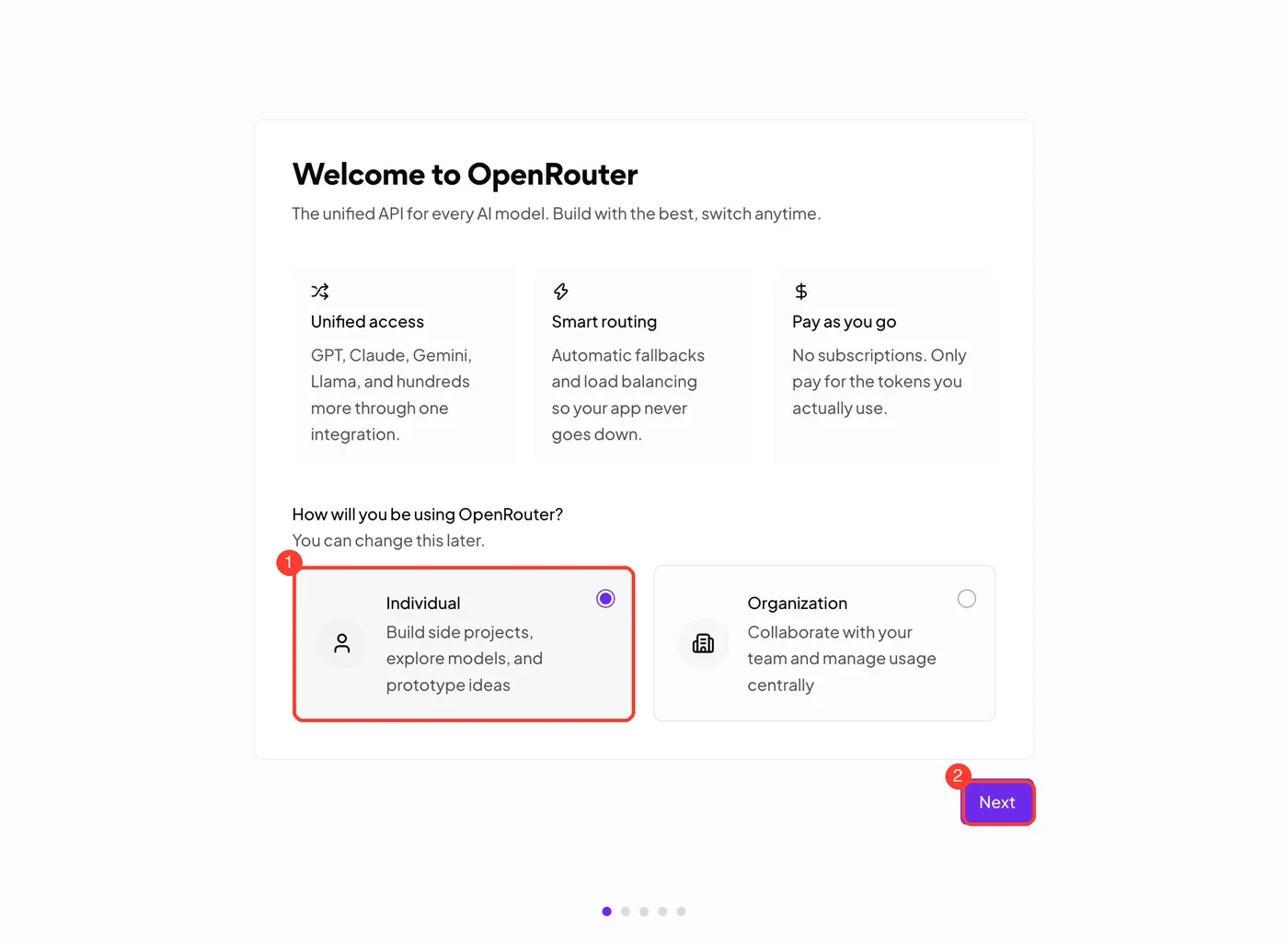
- After verification you go through a 5-step onboarding. Handle it like this:
-
Choose how you’ll use it: for personal use pick Individual (①), then click Next (②).
-
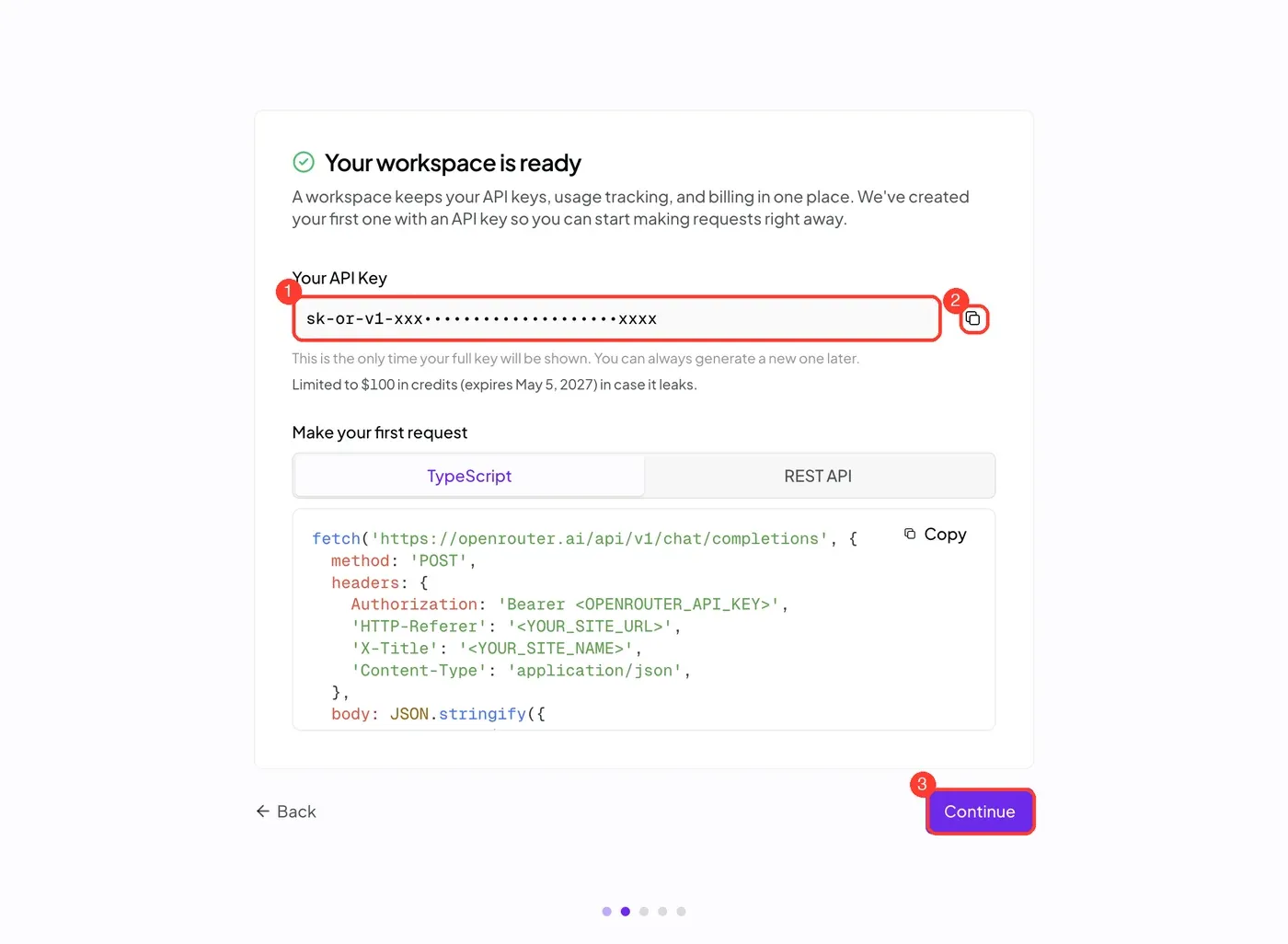
The onboarding creates your first API key automatically, and the full key is shown only once, on this page. Click the copy icon (②) to save it, then click Continue (③). If you don’t copy it here, you can create a new one on the Keys page later (see below).
-
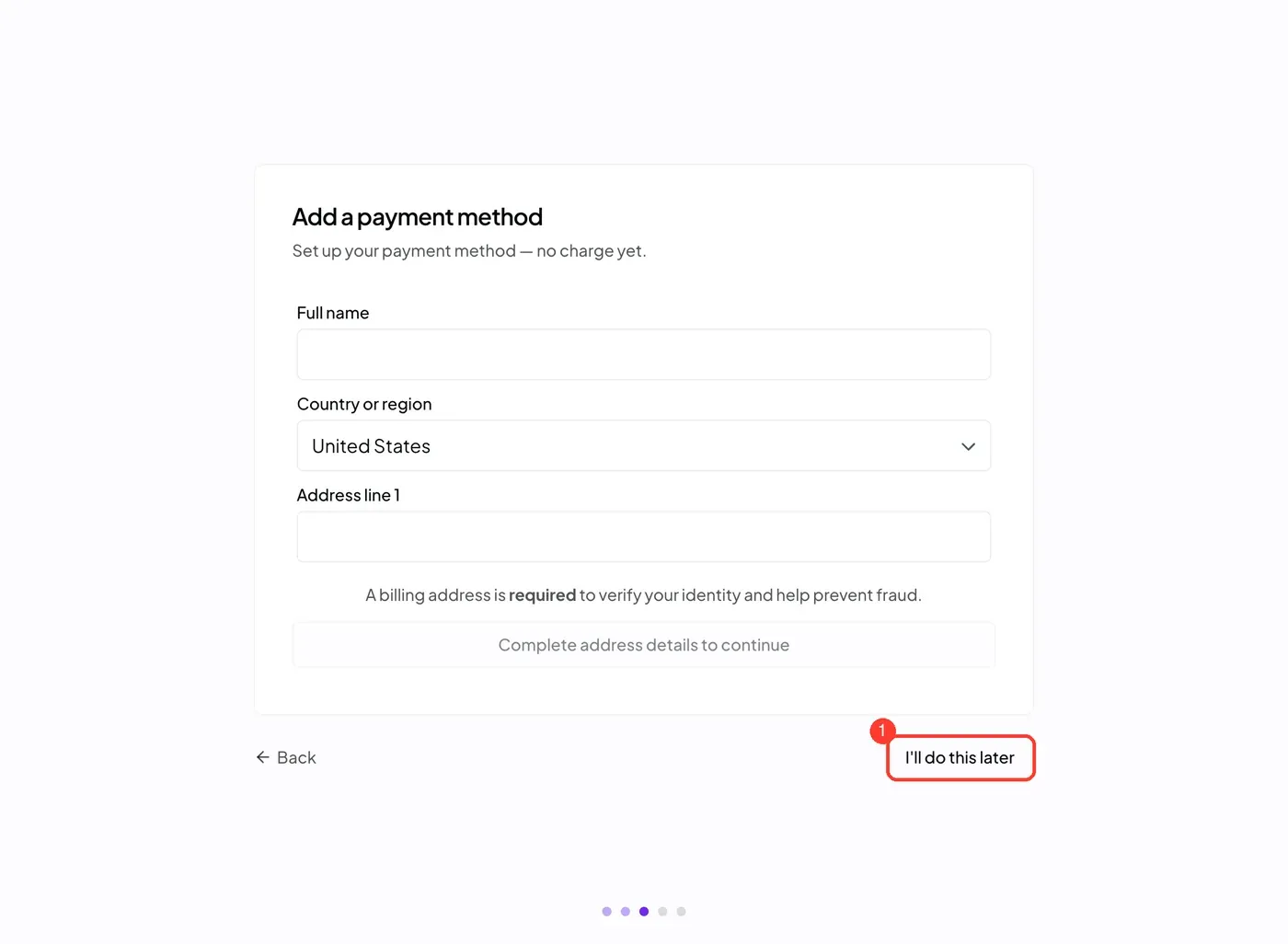
The page for adding a payment method. You don’t need to fill it in now: click I’ll do this later (①).
-
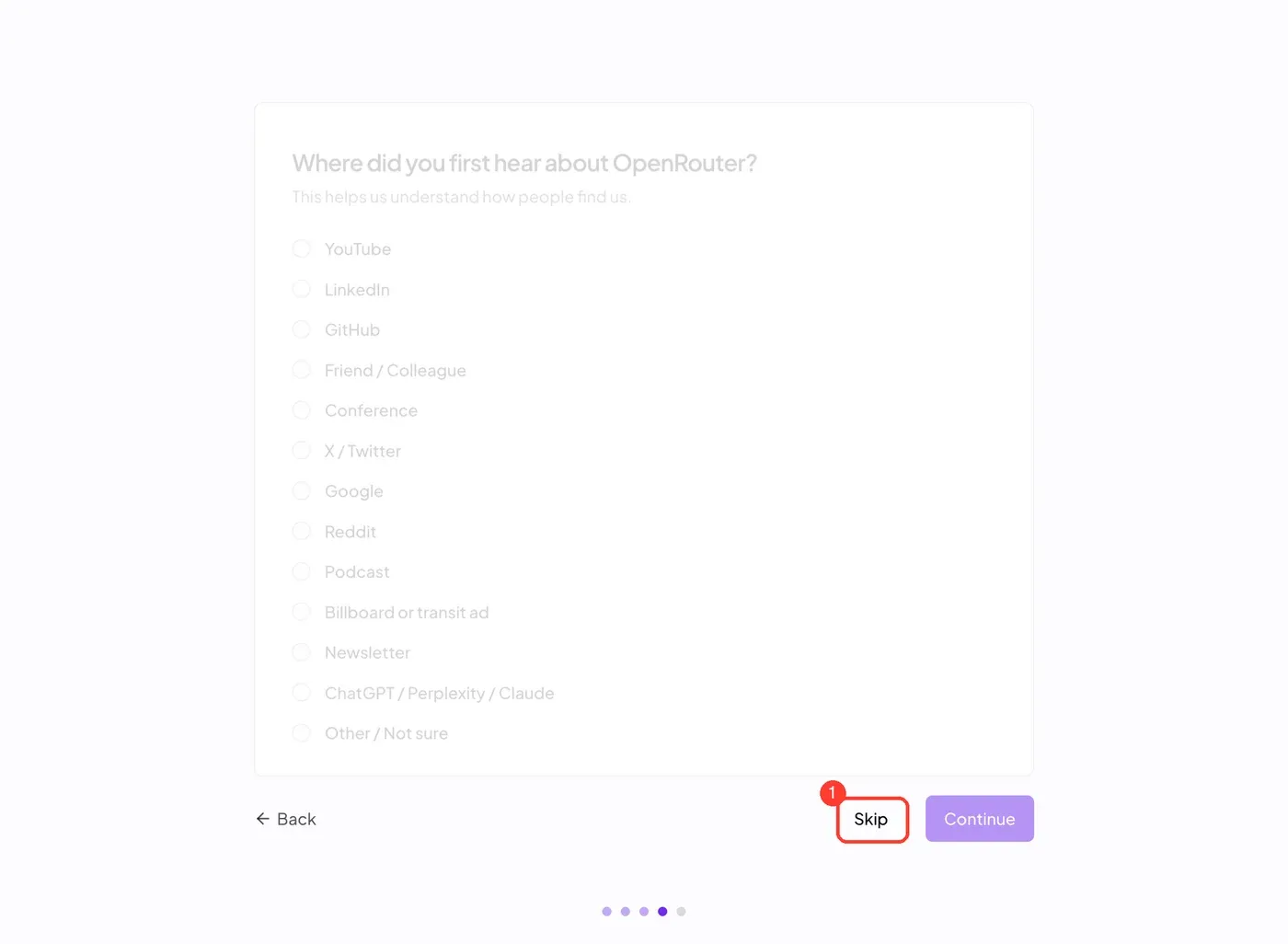
The “Where did you first hear about OpenRouter?” survey. Click Skip (①).
-
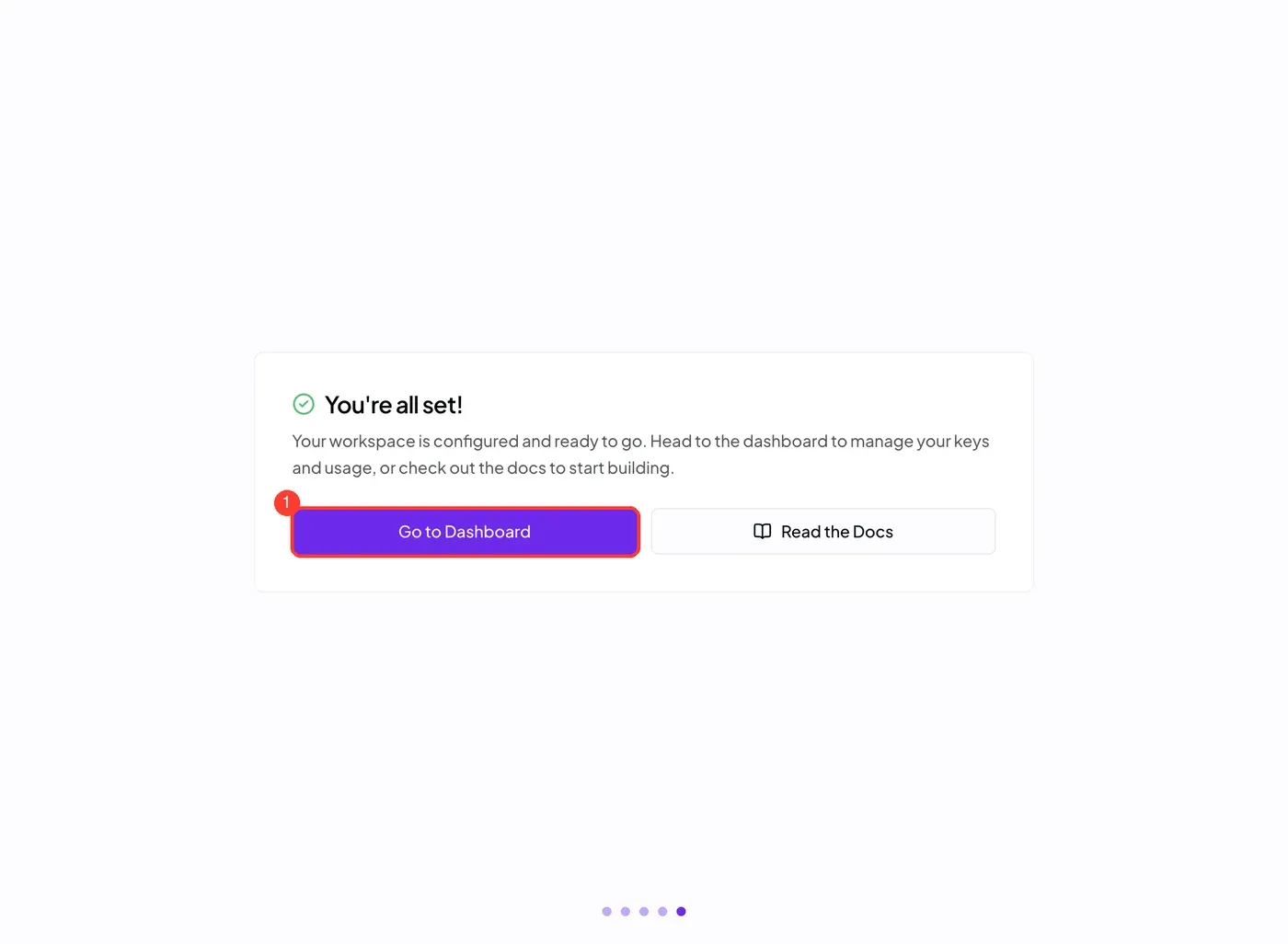
You’re all set! means you’re done. Click Go to Dashboard (①) to open the console.
The key the onboarding creates has a $100 credit limit and a one-year expiry, which are OpenRouter’s protective defaults. With a $0 balance, paid models can’t be used, so the next step is to add credits.
Get an API key
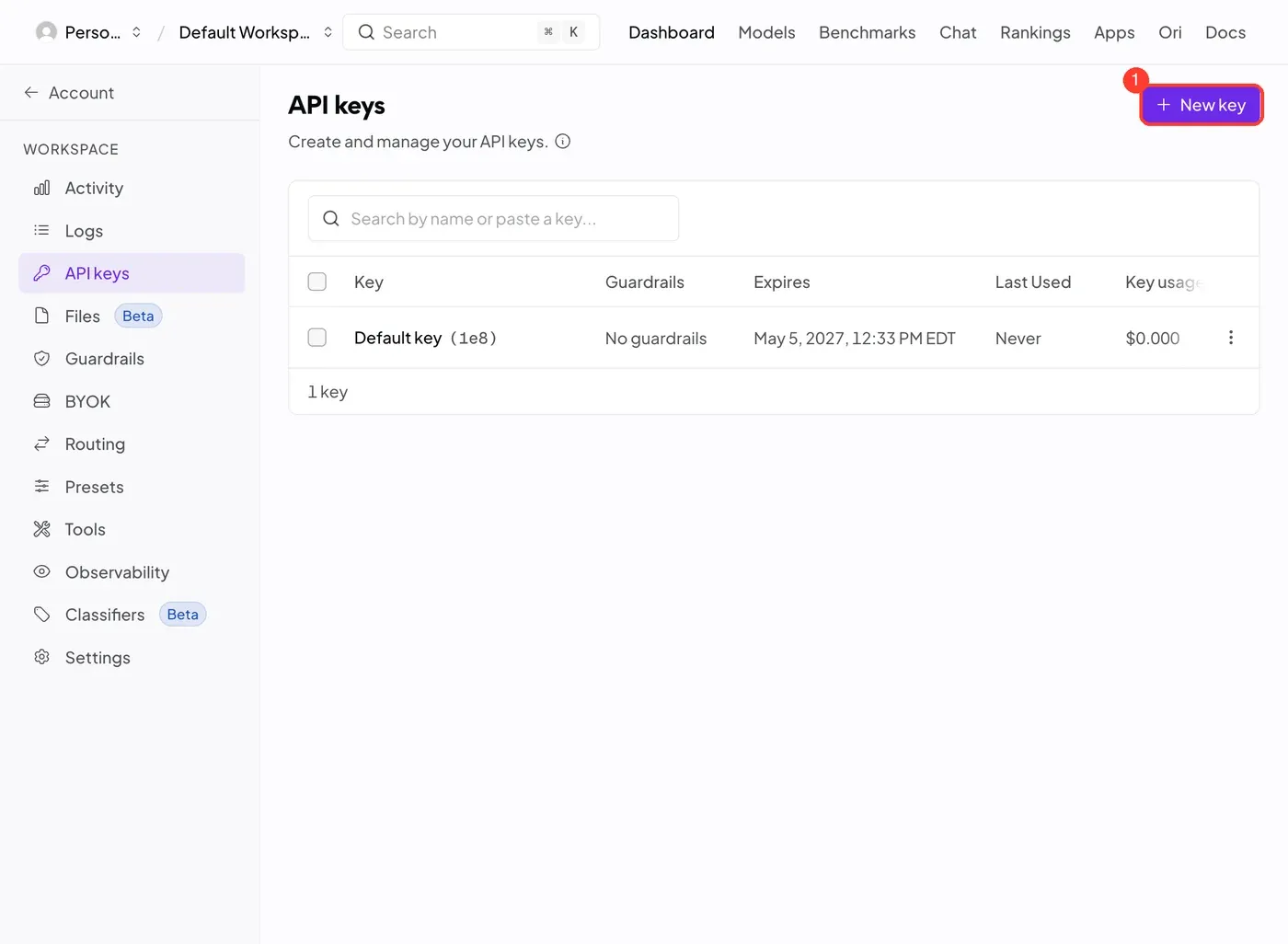
If you didn’t save the key during onboarding, or want to create another, go to openrouter.ai/settings/keys and click New key at the top right (①):
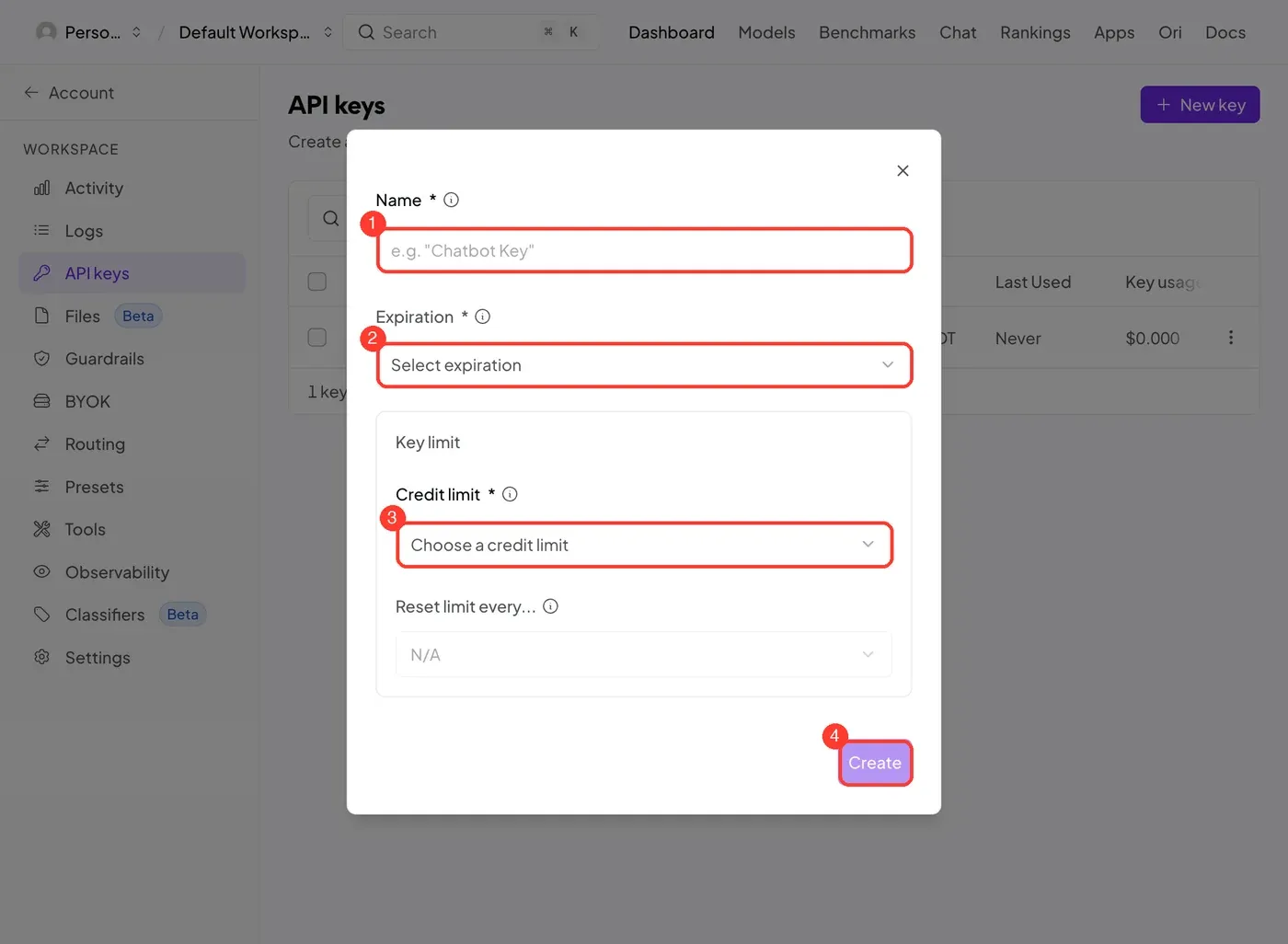
In the Create API Key dialog:
- Enter a name (①) such as
Pine. - Choose a validity period under Expiration (②).
- Choose an upper limit under Credit limit (③).
- Click Create (④).
The full key is again shown only once after creation, so copy it right away.
An API key works like a payment credential for your account. Don’t screenshot it, send it to anyone, or commit it to a code repository. Setting a credit limit keeps the damage bounded if it ever leaks.
Add credits
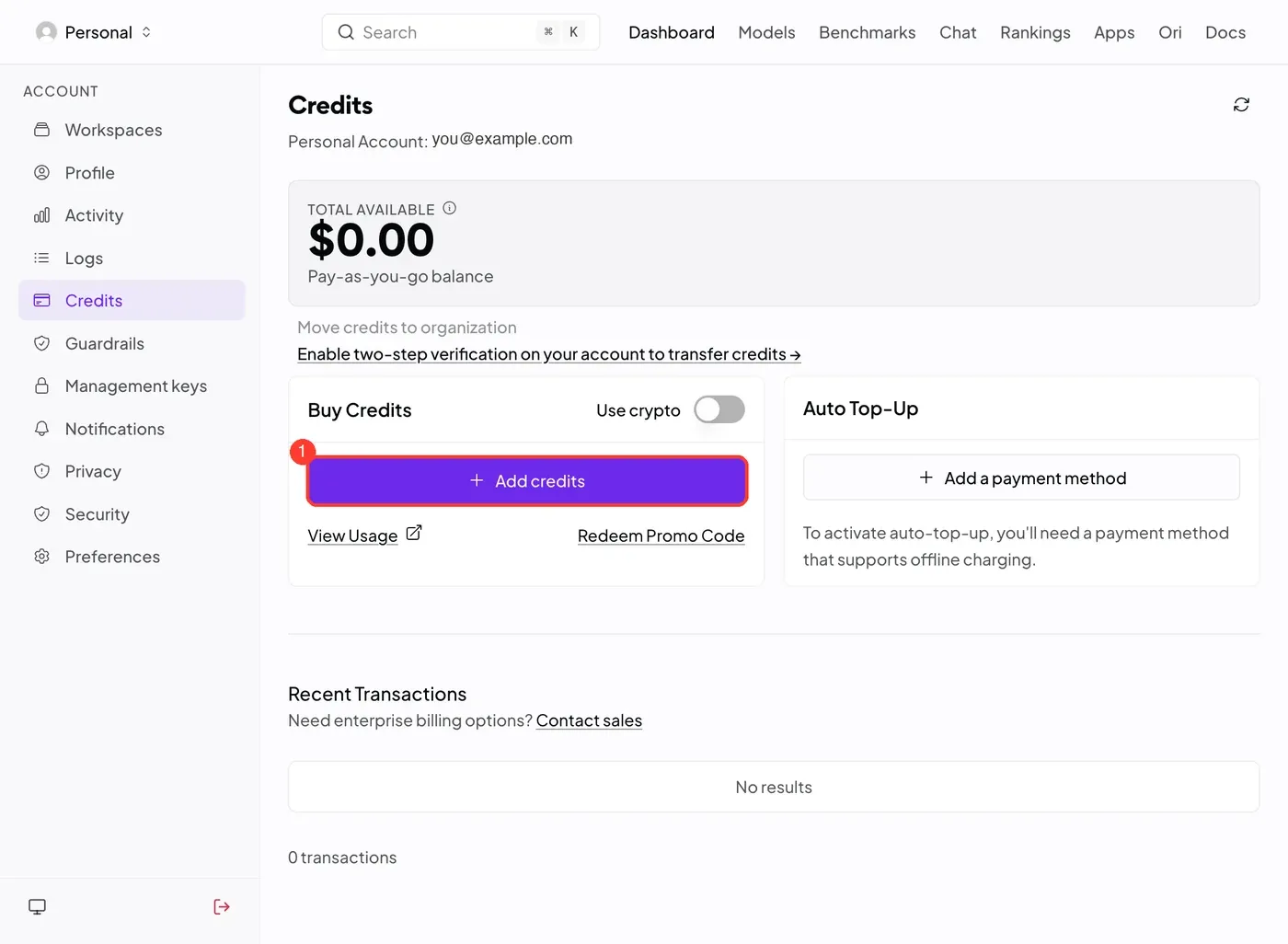
- Open openrouter.ai/settings/credits and click Add credits (①), then follow the page to pay.
- A new account’s balance is $0.00; you can start with a small top-up to try it out.
- Auto Top-Up refills automatically, needs a payment method on file, and isn’t required.
Adding credits requires a billing name, country/region, and address, and a payment method such as a bank card. Please complete this part yourself on the OpenRouter website. Fees, accepted payment methods, and refund rules are as stated on OpenRouter’s website.
Connect OpenRouter in Pine
Step 1: Look at the current state
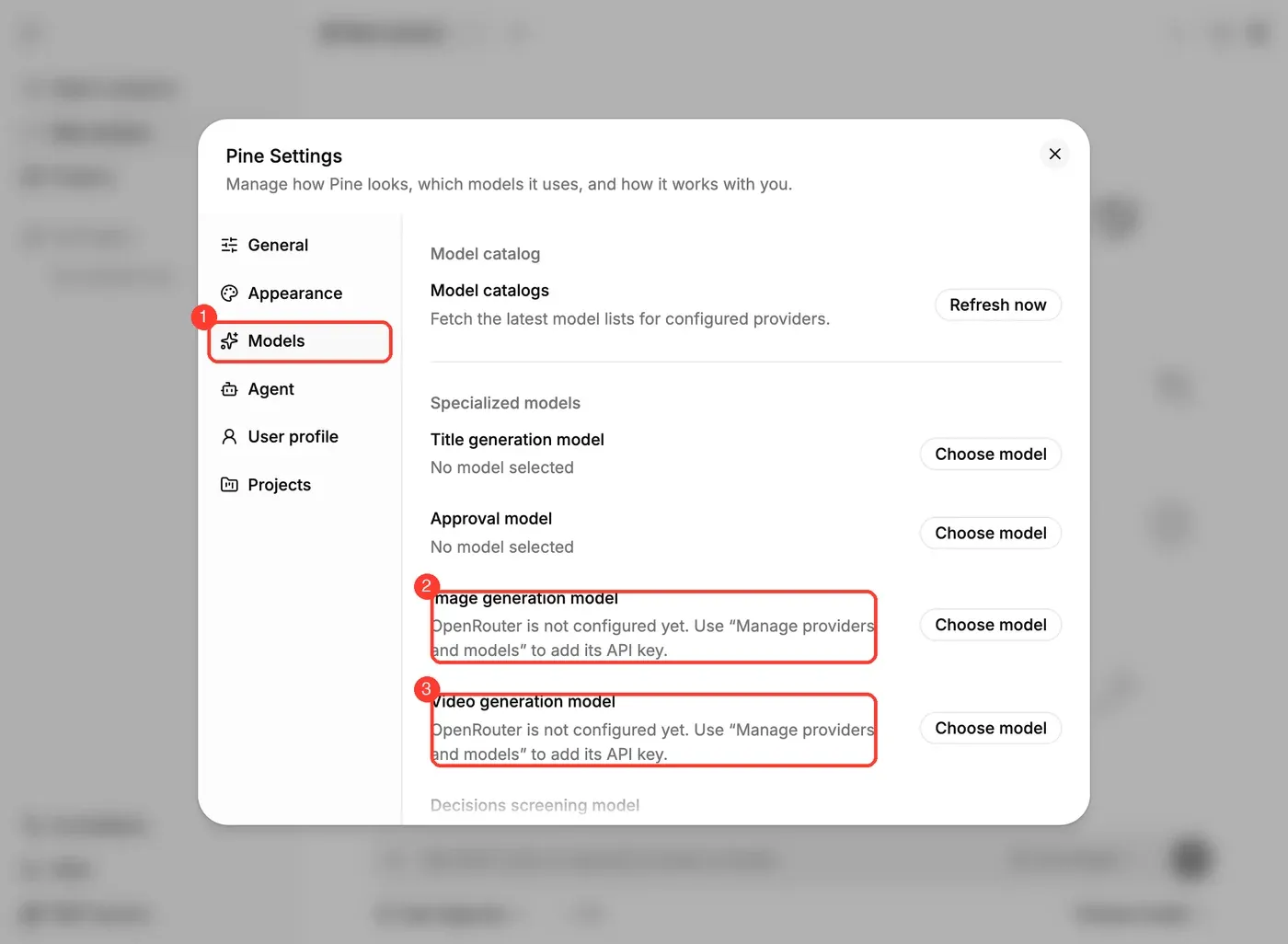
- Click the gear Open Pine settings at the top right of Pine, then click Models on the left (①).
- Image generation model (②) and Video generation model (③) below show OpenRouter is not configured yet:
Step 2: Add the provider
- Close settings, then click Choose model at the bottom right of the input box → Browse all models… → Manage providers and models.
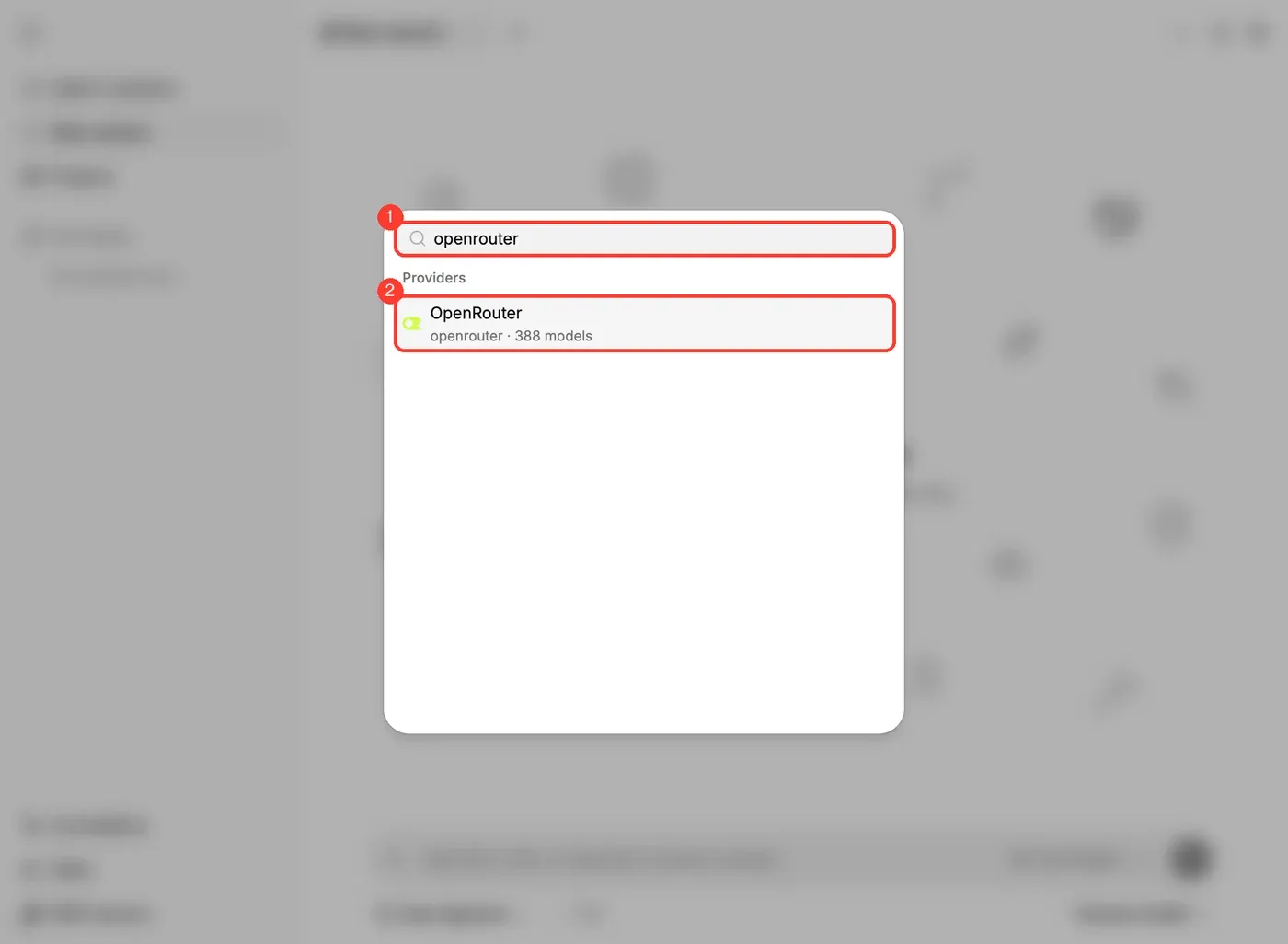
- Type
openrouterin the search box (①) and click OpenRouter when it appears (②):
Step 3: Choose an authentication method
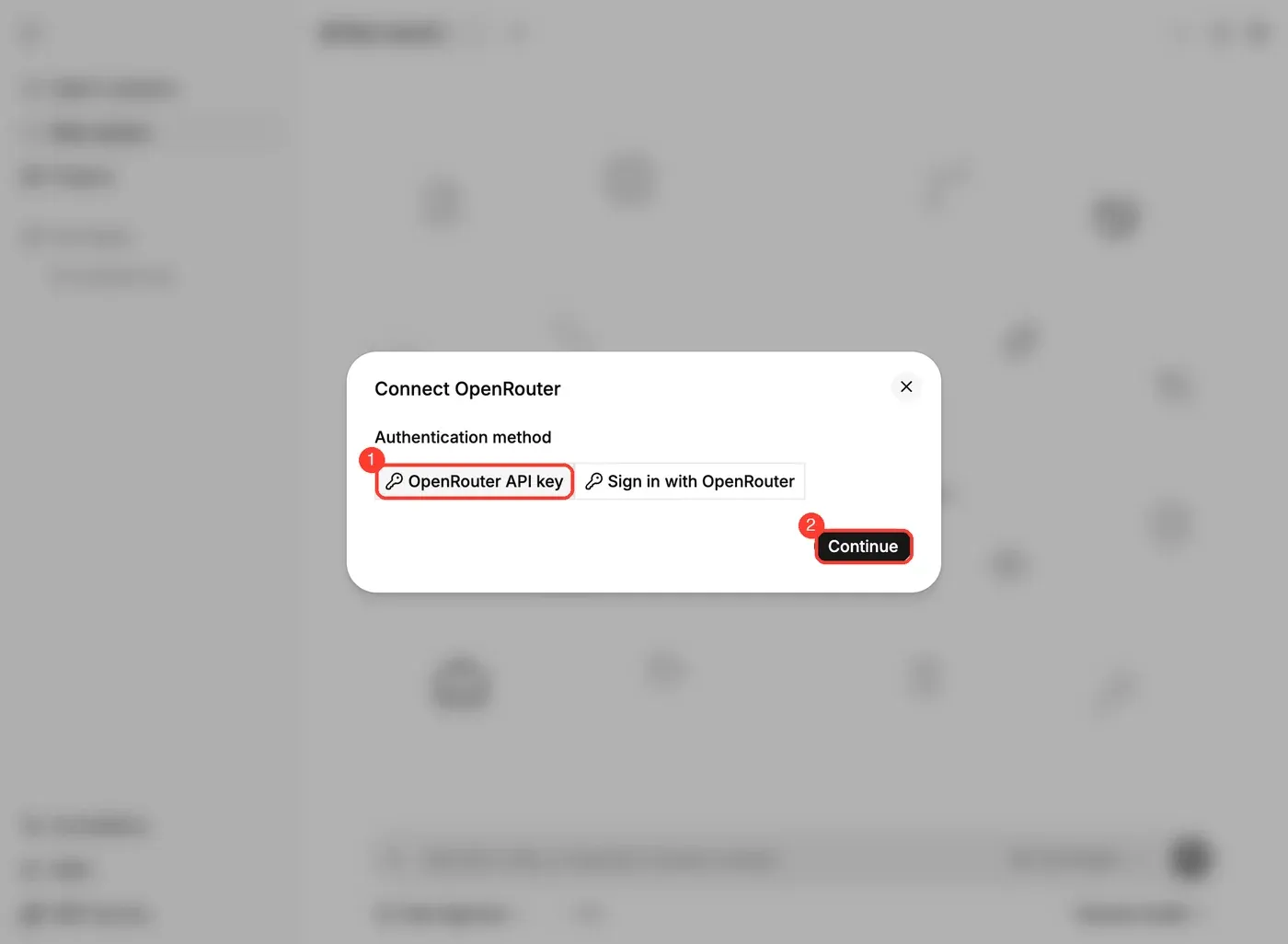
- The Connect OpenRouter dialog offers two methods: OpenRouter API key (①) and Sign in with OpenRouter.
- This guide uses the API key; select it and click Continue (②):
Step 4: Paste the key
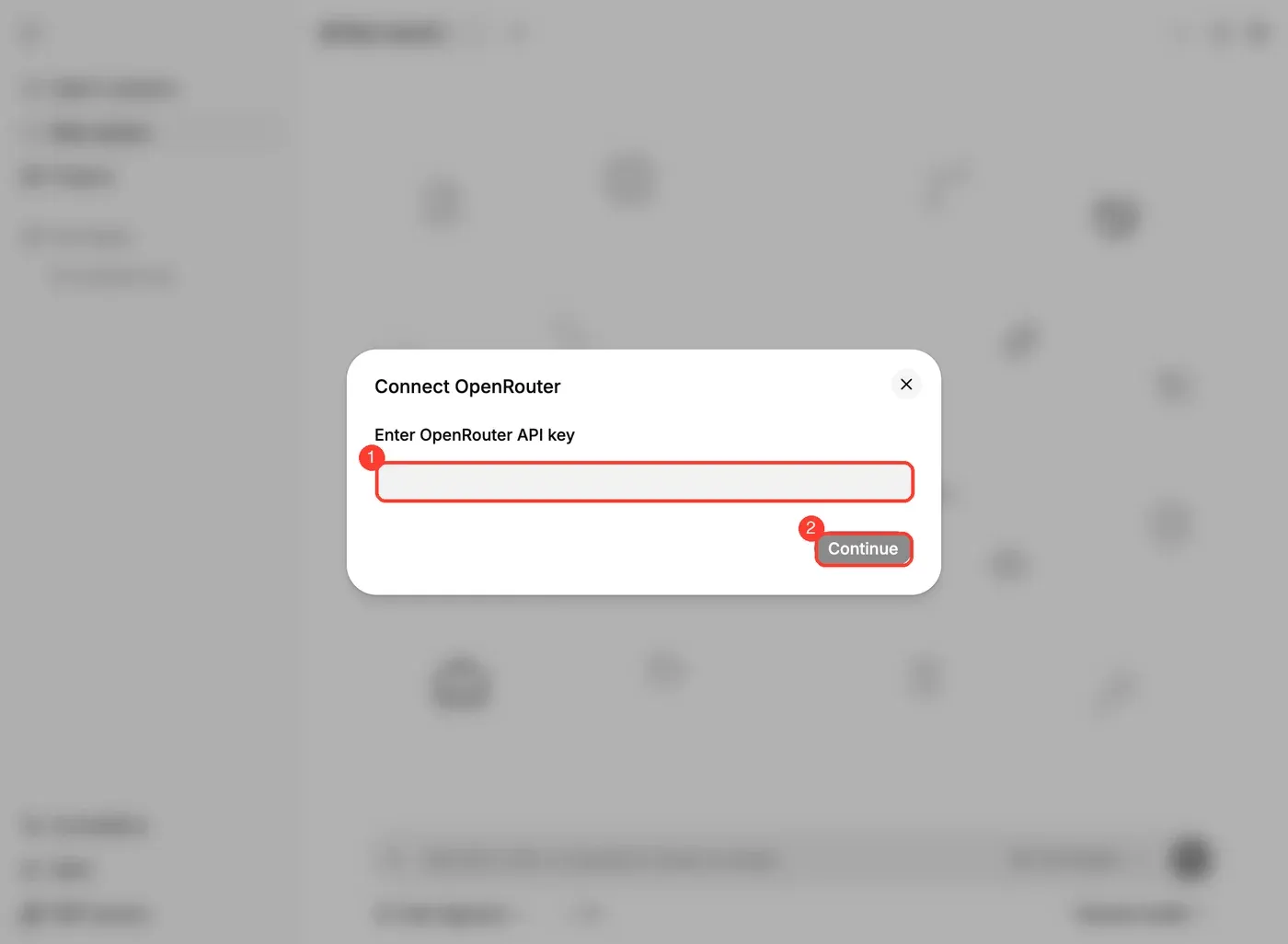
- In Enter OpenRouter API key, paste the key you copied (①) and click Continue (②):
Once connected:
-
Go back to Pine Settings → Models and click Choose model next to Image generation model / Video generation model to pick image and video models on OpenRouter.
-
After that, just ask the AI to generate an image in a session.
-
Image and video generation are billed per use, and prices vary by model. Check the unit price on OpenRouter’s model page before choosing.
-
To change the key, go back to Manage providers and models and repeat steps 3 and 4 above for OpenRouter.